Empowering Player Customization
Melvor Idle 2 is built with community customization at its core. Recognizing that incremental RPG players love detailed statistics, personalized interfaces, and streamlined workflows, Games by Malcs integrated a robust Mod Manager and Settings Suite directly into the game engine.
Rather than forcing players to navigate confusing file directories or risk malicious downloads, Melvor Idle 2 allows you to browse, install, and update community extensions with a single click. Combining these quality-of-life tools with the fundamentals in our Beginner Starter Guide ensures your idle experience runs at peak efficiency.
The Built-In Mod Manager
Accessible directly from the main menu, the built-in Mod Manager connects to the official community repository:
How to Install Mods Safely
- Click the Mod Manager tab on the left sidebar navigation.
- Filter extensions by category: Interface, Quality of Life, Visuals, or Translations.
- Click Subscribe & Enable. The game client will automatically download, verify, and initialize the script without restarting.
- If an update is released, the manager updates the mod automatically upon client launch.
Top 4 Recommended QoL Mods at Launch
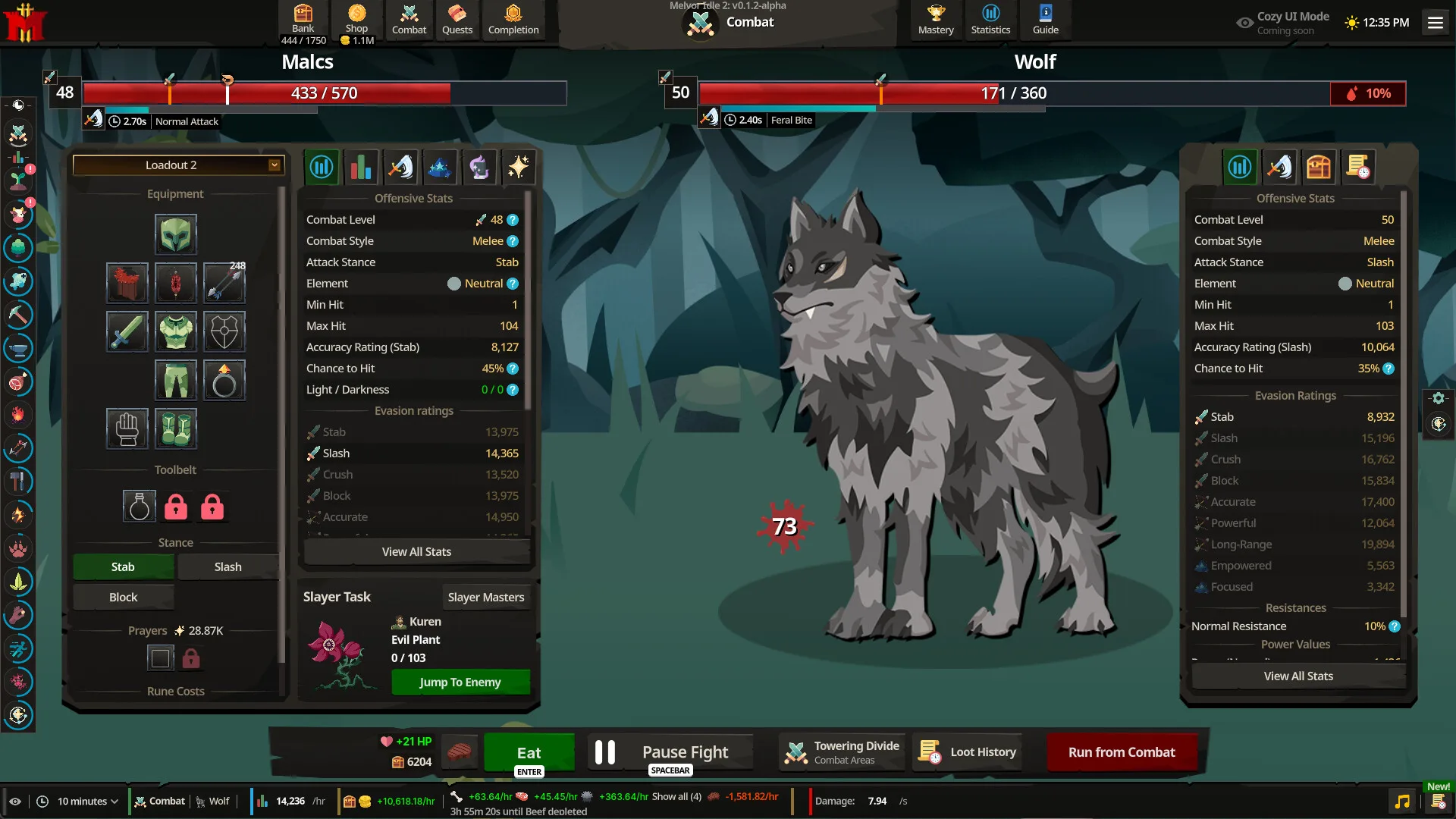
- Drop Rate & Combat Calculator: Displays exact monster drop percentages, drop table weights, and verified time-to-kill metrics directly on the combat screen.
- XP & GP Velocity Tracker: Overlays a lightweight tracker detailing real-time experience-per-hour and gold-per-hour earning rates.
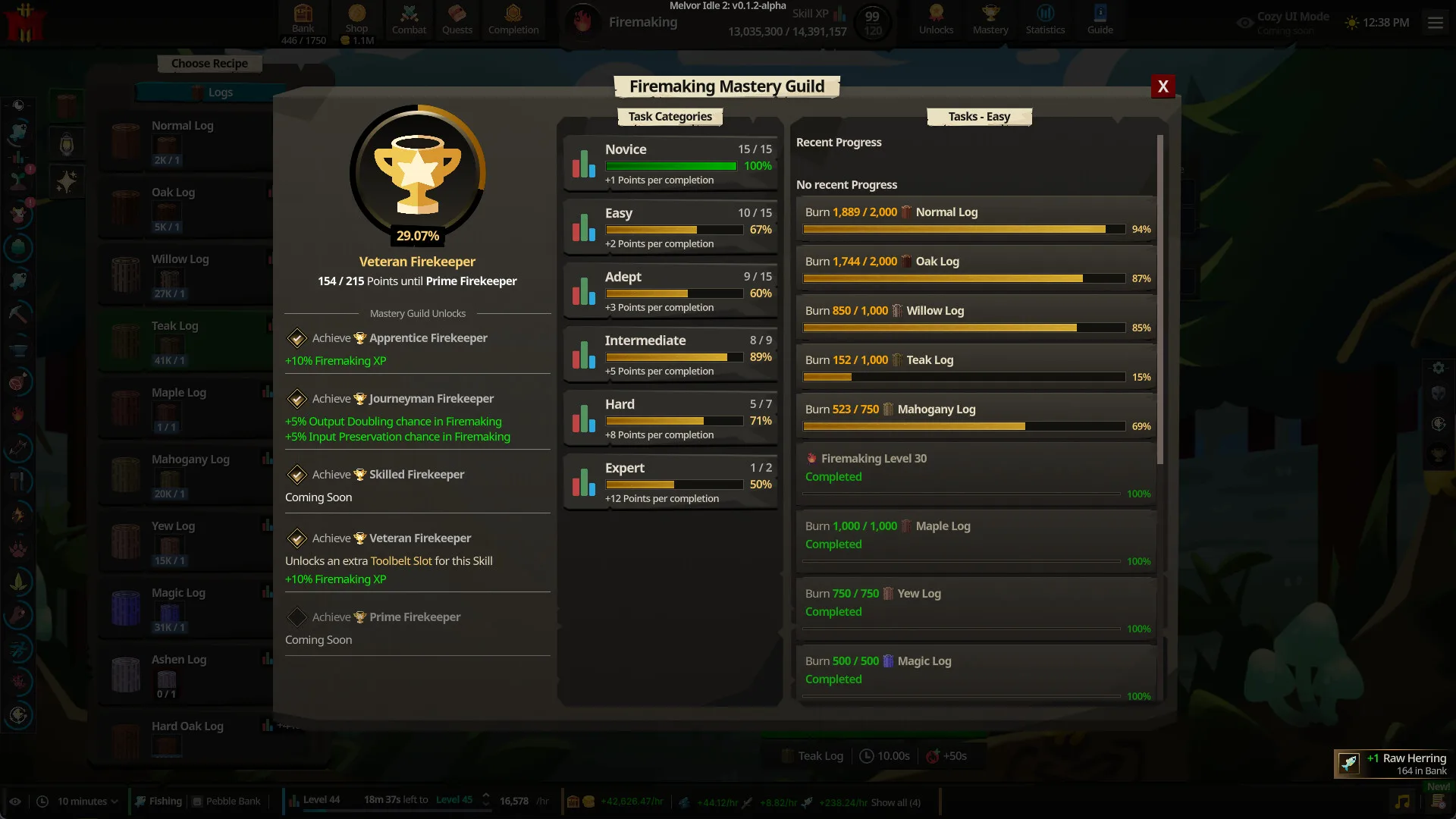
- Mastery Progress Overlay: Highlights which items are closest to the next milestone tier in the Mastery Guilds Guide.
- Minimalist Dark Theme: Provides a streamlined, high-contrast dark color palette optimized for low-light night play.
Critical Settings to Configure Immediately
Before beginning extended idle sessions, optimize these core configuration options:
1. Offline Progress Settings
- Offline Combat Protection: Set to PAUSE ON DEATH. If your food runs out or an unexpected boss mechanic defeats you, the game immediately freezes combat ticks instead of continuously respawning and dying.
- Offline Timer Cap: Default is 18 hours. Ensure your client is set to maximum offline duration to capture full overnight and workday gains.
2. Save & Cloud Synchronization
- Auto-Cloud Backup: Toggle to ENABLED (Every 15 Minutes).
- Local Save Slot Duplication: Periodically copy your primary save into Slot 2 or Slot 3 as an offline redundancy check against local disk corruption. Learn import techniques in our Demo Save Carryover Guide.
3. Performance & Battery Optimization
- Background Frame Rate: Lower background rendering to 15 FPS. Because Melvor Idle 2 calculates progression mathematically, high graphical frame rates while minimized only waste laptop battery and generate unnecessary heat.
- Weather Animation Toggle: On low-spec laptops or older handhelds, toggle weather particle effects to Low to reduce GPU overhead.
Settings Configuration Reference Table
| Setting | Default Value | Recommended Value | Impact on Gameplay |
|---|---|---|---|
| Offline Combat Behavior | Continue Fighting | Pause on Death | Prevents repeated death item losses |
| Cloud Auto-Sync | Manual | Auto (Every 15m) | Guarantees zero lost progress across crashes |
| Background FPS Limit | 60 FPS | 15 FPS | Saves 80% CPU/GPU power while minimized |
| Auto-Sort on Deposit | Disabled | Enabled | Automatically files items into assigned bank tabs |
| Max Hit Warning Marker | Enabled | Enabled | Displays red danger zone on enemy health bars |
| Weather Particle Density | High | Medium / Low | Improves battery life on Steam Deck & laptops |
For details on the release roadmap and system specifications, consult our Release Date & Platforms Guide.
[!TIP] Always export a manual text string of your save file before installing major game-altering community mods! While vetted mods are safe, keeping a clean text backup ensures you can instantly restore your character if a third-party mod becomes obsolete after a game patch.